


From native MCP integration for autonomous AI agents and default Accessibility Tree inspection to Speculation Rules debugging: Discover how the latest Chrome DevTools updates transform development, debugging, and web performance.
This article is an in-depth expert contribution from our content cluster. Discover the complete overview on our main page: Web Development & Web Apps →
The Transformation of Developer Tools
In 2026, Google Chrome DevTools is rapidly evolving from a traditional inspection and debugging suite into an integrated system platform for both human software engineers and autonomous AI agents. With the introduction of the Model Context Protocol (MCP) and a default-enabled Accessibility Tree, the historical boundary between visual web design, semantic accessibility, and machine-driven interaction has permanently dissolved.
- Default Accessibility Tree (Chrome 148): The full accessibility tree replaces the classic DOM focus. This streamlines WCAG compliance and optimizes readability by autonomous AI agents.
- Stable MCP Server & CLI (Chrome 149): Natively integrated Model Context Protocol enables autonomous AI coding assistants to control and query the browser environment via standardized JSON-RPC protocols.
- DevTools for Agents & CSS Upgrades (Chrome 150): Experimental V8 heap snapshots for automated memory leak diagnostics, extension lifecycle control, and live-editing for modern CSS
@containerand@functionrules.
- 1. Introduction: The New Era of Browser Debugging Tools
- 2. The Accessibility Tree Active by Default (Chrome 148)
- 3. Stable DevTools MCP Server & CLI (Chrome 149)
- 4. AI Assistance & CSS Auto-Completion (Chrome 147/149)
- 5. Debugging Speculation Rules (Chrome 148)
- 6. Adopted Style Sheets & Performance Traces for SPAs (Chrome 145/146)
- 7. Chrome 150: DevTools for Agents & Advanced CSS Controls
- 8. Conclusion: DevTools as the Control Center for the Future Web
1. Introduction: The New Era of Browser Debugging Tools
For decades, Google Chrome DevTools has served as the indispensable Swiss Army knife for web developers worldwide. Whether fixing an intricate CSS grid layout, profiling a memory leak in client-side JavaScript, or analyzing HTTP waterfall requests in the Network panel, DevTools has always been the primary command center for software engineers. However, the web in 2026 differs fundamentally from that of the previous decade. Modern web applications are built on sophisticated client-side rendered stacks, rely on edge-native architectures for minimal latency, and must comply with stringent international accessibility legislation, such as the European Accessibility Act (EAA) and Germany's Barrierefreiheitsstärkungsgesetz (BFSG).
Simultaneously, we are witnessing the explosive rise of AI coding assistants (such as Antigravity, Cursor, and Claude Code) and fully autonomous AI agents that browse, evaluate, and operate web applications on behalf of end users. These automated agents do not interact with user interfaces via human visual perception or physical mouse pointers; they parse websites programmatically. For engineering teams, this creates a critical dual mandate: digital platforms must be visually stunning and blazingly fast for human users, while maintaining flawless structural legibility and deterministic operability for artificial intelligence.
The latest Chrome DevTools updates from version 145 to version 150 address these industry shifts directly. Google has fundamentally modernized the developer tools suite to natively support digital accessibility compliance, agentic AI protocol integration, speculative preloading, and modern web component standards. In this comprehensive technical guide, we break down the most essential new capabilities, explain their architectural foundations, and demonstrate how you can integrate them into your production development workflows. If your organization requires an expert architecture review or accessibility audit, our team is available for technical consulting.
2. The Accessibility Tree Active by Default (Chrome 148)
One of the most far-reaching updates in DevTools history is situated in the Elements panel. Beginning with Chrome 148, the full Accessibility Tree serves as the default inspection view for document structure. Previously, developers had to explicitly enable this view via experimental settings or inspect accessibility properties buried deep within the computed styles tab of an individual DOM node.
The accessibility tree is a specialized structural hierarchy generated by the browser engine in parallel with the Document Object Model (DOM). It filters out purely decorative container elements that are irrelevant to assistive technologies (such as screen readers) and translates semantic markup into distinct roles (e.g., button, heading, link) with well-defined states (e.g., focusable, expanded, checked) and accessible names. This structure forms the operational backbone for assistive hardware and software.
Why the Accessibility Tree is Now Business-Critical
With accessibility regulations such as the European Accessibility Act (EAA) and BFSG fully enforced across European markets, commercial B2B and B2C web applications are legally mandated to deliver accessible digital interfaces. Non-compliance exposes enterprises to severe regulatory fines and legal disputes. The DevTools accessibility tree enables developers to verify instantly whether heading hierarchies are logically sequential, form controls have accessible labels, and custom controls expose appropriate accessibility properties.
Furthermore, this tree plays a decisive role in GEO (Generative Engine Optimization) and Agentic Browsing. When an autonomous AI agent navigates a web application to fulfill a transaction—such as procuring inventory or scheduling appointments—it relies directly on the accessibility tree to interpret the UI semantics. A well-constructed accessibility tree ensures that AI systems can reliably understand and execute transactions on your digital platforms without runtime errors. For an in-depth breakdown of how agentic navigation impacts performance metrics, explore our technical guide on Google's Agentic Browsing & PageSpeed Insights.
Regulatory Compliance (WCAG 2.1 AA)
Enterprise platforms must guarantee strict adherence to WCAG 2.1 AA standards. The accessibility tree flags color contrast violations, missing alternative text, and unmapped form inputs in real time.
Agentic Machine-Readability
Autonomous AI agents require precise semantic roles via ARIA. If a critical call-to-action button is implemented as an unadorned <div>, agentic parsers cannot reliably identify it as an actionable element.
3. Stable DevTools MCP Server & CLI (Chrome 149)
With the release of Chrome 149, the native integration of the Model Context Protocol (MCP) inside DevTools achieved general availability. This transition represents a landmark milestone in web browser architecture. MCP is an open-source standard enabling AI systems to interact securely with local runtime tools, databases, and developer environments through structured JSON-RPC messaging.
By exposing a dedicated DevTools MCP Server, Chrome transforms the browser tab into an interactive runtime environment for AI coding assistants. Instead of manually copying and pasting stack traces, console outputs, or CSS snippets into chat interfaces, an MCP-connected agent can directly query live browser sessions. The AI model can inspect DOM trees, execute JavaScript in page context, toggle CSS properties, capture visual viewport screenshots, and stream network events programmatically.
Initialization & Secure Handshake
The DevTools MCP server is spawned locally via CLI, establishing an authenticated remote debugging tunnel directly to your active Google Chrome browser instance.
Dynamic Tool Registration
The AI model discovers and registers tools exposed by the browser runtime, including DOM queries, stylesheet modifications, runtime evaluations, and network inspection.
Autonomous Debugging & Remediation
When runtime exceptions occur, the AI agent inspects live memory and network states, diagnoses the root cause (such as a blocked fetch call), and suggests targeted code fixes.
Configuring the integration is straightforward and resides within your IDE configuration. Below is a representative configuration snippet for connecting modern AI developer environments—such as Antigravity, Cursor, or Claude Desktop—to the DevTools MCP server over a local debugging port:
{
  "mcpServers": {
    "chrome-devtools": {
      "command": "npx",
      "args": [
        "-y",
        "@chrome/devtools-mcp-server",
        "--port",
        "9222"
      ]
    }
  }
}
Additionally, Chrome 149 introduced a dedicated WebMCP Debugging dashboard within the Application panel. This interface provides developers with comprehensive visibility into every command sent by external AI agents, logging payload contents, execution timestamps, and permission grants. This safeguards developer workflows against prompt injection vulnerabilities and unintended side effects during autonomous browser operations.
4. AI Assistance & CSS Auto-Completion (Chrome 147/149)
The built-in AI Assistant in DevTools—powered by Google's Gemini models—has received substantial algorithmic upgrades across versions 147 and 149. Earlier iterations were strictly constrained to context-menu triggers, requiring developers to manually right-click an isolated console error or CSS rule to request an explanation.
With Chrome 147, Context-Free Queries were unlocked. Developers can now submit freeform natural language questions directly into the DevTools chat panel, such as: “Why is the checkout page API request timing out on slow connections?” or “Which DOM element causes the layout shift during responsive resizing?”. The assistant autonomously queries relevant diagnostic panels—including network timelines, console history, and computed CSS properties—to deliver cohesive solutions. For a comprehensive exploration of Gemini-driven browser workflows, read our dedicated article on the Chrome DevTools AI Assistant.
Pro-Tip: Direct Style Injection via AI
Starting with Chrome 149, developers can instruct the AI Assistant to correct layout defects directly. When asked to center a responsive container, the assistant generates the CSS rule and offers to inject it immediately via Adopted Style Sheets, allowing instant visual validation without touching disk files.
Complementing this capability, Chrome 149 significantly upgrades the code-completion engine across the Console and Sources panels. Rather than relying solely on static TypeScript definitions, the updated engine performs AI-Augmented Code Completion that evaluates live runtime memory state and scans all active CSS class selectors present in the document, drastically reducing debugging keystrokes.
5. Debugging Speculation Rules (Chrome 148)
Sub-second response times remain a paramount ranking criterion for Google (Core Web Vitals, particularly Largest Contentful Paint (LCP) and Interaction to Next Paint (INP)) and drive measurable revenue gains in e-commerce applications. A potent mechanism for delivering instantaneous page transitions is the Speculation Rules API. This browser standard allows developers to declare structured JSON rules indicating which navigation targets should be speculatively fetched or prerendered in the background before user activation.
A declarative configuration embedded within HTML documents appears as follows:
<script type="speculationrules">
{
  "prerender": [
    {
      "source": "list",
      "urls": ["/en/web-development", "/en/contact"]
    }
  ]
}
</script>
Historically, verifying whether speculative operations succeeded was largely opaque. If a prerendered target failed due to cookie restrictions, CSP policies, or client device memory pressure, engineering teams lacked actionable visibility into the root cause.
Chrome 148 resolved this challenge by introducing a dedicated "Speculative Loads" monitor inside the Application panel. This interface provides clear debugging telemetry:
Status Monitor
Real-Time Status
Tracks target URLs across lifecycle phases including "Ready", "Prerendering", or "Failed" states.
Failure Analysis
Failure Diagnostics
Provides exact architectural reasons when speculative requests are aborted, such as authentication boundaries or CSP restrictions.
Rule Validation
Syntax Validation
Validates JSON rule schemas immediately upon document parse, highlighting syntax discrepancies before deployment.
This transparent observability ensures that development teams maximize speculative loading performance gains without exhausting user data plans or triggering unnecessary client memory overhead.
6. Adopted Style Sheets & Performance Traces for SPAs (Chrome 145/146)
Chrome versions 145 and 146 delivered fundamental architectural tooling for modern Web Components and Single Page Applications (SPAs). Adopted Style Sheets and Constructed Stylesheets allow developers to define CSS stylesheets programmatically in JavaScript and share them across multiple Shadow DOM boundaries without duplicative parsing overhead. This architecture provides substantial memory and CPU savings for complex enterprise UI design systems.
Previously, identifying rules originating from an adopted stylesheet inside the Elements panel was problematic because they lack classical <style> DOM tags. Beginning in Chrome 146, these rules are explicitly annotated with a “constructed stylesheet” badge in the Styles pane. Developers can inspect, edit, and evaluate CSS custom properties live across Shadow DOM boundaries seamlessly. If your application architecture relies on React, explore our deep dive into automated memoization in the React Compiler Guide 2026.
Comparison: Traditional SPA Navigation vs. Soft Navigation Traces
- Process: The browser completely unloads the active document and re-fetches HTML, CSS, and JS assets.
- Advantage: Straightforward profiling in the Performance panel since each navigation starts from an empty state.
- Disadvantage: Substantially slower response times and jarring layout flashes for end users.
- Process: Document runtime is preserved; client-side JavaScript updates DOM contents dynamically.
- Advantage: Instantaneous user experience with zero full-page reloads.
- Solution: DevTools records client transitions as distinct "Soft Navigation" timeline markers for granular INP tuning.
Additionally, Chrome 145 finalized the stabilization of Soft Navigation Traces in the Performance panel. In single-page applications built with React, Next.js, or Vue, routing transitions occur client-side without full-page reloads. These transitions previously blended into an unreadable flame chart. DevTools now identifies soft navigations automatically, displays visual status markers in the timeline, and maps Cumulative Layout Shift (CLS) and Interaction to Next Paint (INP) delays to their specific navigation boundaries.
7. Chrome 150: DevTools for Agents & Advanced CSS Controls
The stable rollout of Chrome 150 accelerates the browser's trajectory toward autonomous agentic workflows and advanced styling features. Key developments expand automated debugging interfaces, enhance Gemini diagnostic pipelines, and bring native live-editing support for modern CSS specifications.
1. Automated V8 Heap Snapshot Diagnostics
Autonomous AI agents can invoke V8 heap snapshots programmatically using the --experimentalMemory CLI flag. This enables agentic developer tools to identify memory leaks, detached DOM trees, and unintended object retention in automated regression test suites without manual developer intervention.
2. Extension Lifecycle & Service Worker Telemetry
Using the --categoryExtensions flag, AI coding assistants gain deterministic control over installing, reloading, and profiling Chrome extensions. The interface exposes direct access to background service worker runtime logs, streamlining PWA debugging.
3. Multimodal Gemini Diagnostics Widgets
The AI Assistance panel integrates new structured diagnostic widgets, providing Gemini with unified telemetry across Lighthouse audits, performance traces, network payloads, and source code context simultaneously to deliver holistic architectural recommendations.
CSS @container & @function At-Rules Live-Debugging
In modern CSS authoring, Chrome 150 delivers a long-awaited capability: at-rules such as @container (for responsive Container Queries) and modern @function declarations can now be edited live within the Styles pane. Front-end engineers no longer need to toggle between external IDEs and browser windows to test fluid responsive layouts or custom functions; modifications render immediately in the live viewport.
Styles Pane Accessibility Enhancements
Alongside agent automation capabilities, Chrome 150 brings improved screen reader vocalizations for overridden style rules and updated ARIA role annotations across internal menus, reinforcing digital inclusion within the developer tooling interface itself.
Quick-Check: Modernizing Your DevTools Workflows
@chrome/devtools-mcp-server in your AI IDE for autonomous, real-time web debugging.
8. Conclusion: DevTools as the Control Center for the Future Web
Recent Google Chrome DevTools releases chart an unmistakable trajectory: web development is becoming more integrated, automated, and accessible. By promoting the accessibility tree to the default structural view, Google ensures that accessibility is treated as an indispensable development priority rather than an afterthought.
Simultaneously, the stable MCP server integration and Chrome 150's agentic diagnostics transform web browsers into collaborative execution partners for AI coding assistants. In tandem with performance diagnostic tools like the Speculative Loads monitor and Soft Navigation profiling, developers in 2026 possess a comprehensive command center engineered to build accessible, lightning-fast, and future-proof digital applications.
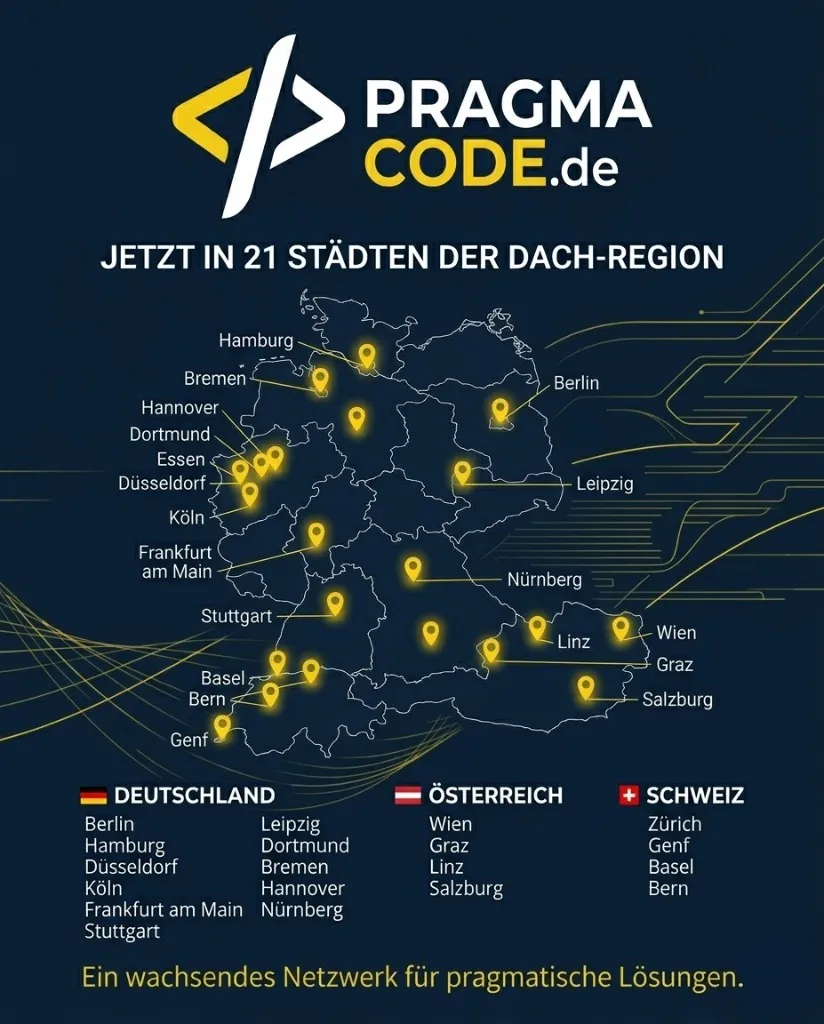
Our Regional Expertise
We are your digital partner – regionally anchored and successfully scaling across borders.
Have a vision?
Let's check together how we can make your idea take flight.
Book your free strategy call nowExtended Specialized Glossary
Chrome DevTools
The developer tools built directly into the Google Chrome browser, used for inspecting, debugging, and optimizing web pages.
WebMCP
A protocol standard enabling autonomous AI agents to interact securely with browser environments to automate web analysis and control tasks.
Accessibility Tree
A structure generated by the browser in parallel to the DOM, exposing a semantic model of the document for screen readers and AI agents.
Speculation Rules
A JSON-based API that lets web pages instruct the browser to prerender or prefetch upcoming link targets for instantaneous navigation.
Adopted Style Sheets
A modern API for creating and sharing CSS style rules imperatively across Shadow DOM boundaries, reducing parsing overhead in web components.
Constructed Stylesheets
A standardized browser API allowing stylesheets to be created programmatically in JavaScript and shared efficiently across multiple Shadow DOM trees without duplicate parsing overhead.