


A bulky product needs different shipping from its accessories. The critical question is what happens when customers buy them together. This guide covers product identification, shipping rules, price matrices, and documented test carts.
This article is an in-depth expert contribution from our content cluster. Discover the complete overview on our main page: E-Commerce and Store Development →
Configuring Shopware shipping costs for specific products starts with separating the shipping method from the charge. Our Shopware online store cost guide covers project planning. This article focuses exclusively on shipping configuration. For the broader service, see E-Commerce.
Product identification: Define a reliable way to recognize products requiring special treatment.
Availability: Decide which shipping method customers should be offered for each cart composition.
Calculation: Independently determine which product quantities are allowed to influence the charge.
Shopware shipping costs for specific products: Record the logic and version
This guide covers Shopware 6, specifically 6.7.16.0, documented in the official release notes dated 02.11.2026. The shipping documentation used here is identified as 6.7.0.0 or newer. Before making changes, record your installed version and any active extensions that affect shipping.
Write down the intended business policy before opening the administration. “Bulky goods cost extra” leaves important decisions unresolved. Should special shipping replace standard shipping? Should accessories incur another charge alongside it? Would a flat special rate for the entire cart be sufficient? Those decisions establish the expected result against which you will test the configuration.
Change the shipping method or change the tariff?
If the goods require another transport service, plan a dedicated shipping method. Specify when the existing service must become unavailable. Also decide whether ordinary products may travel with the special goods.
If the transport service stays the same, consider a separate pricing rule within that shipping method. Define whether the tariff applies to the whole cart or depends on the quantity of the affected products.
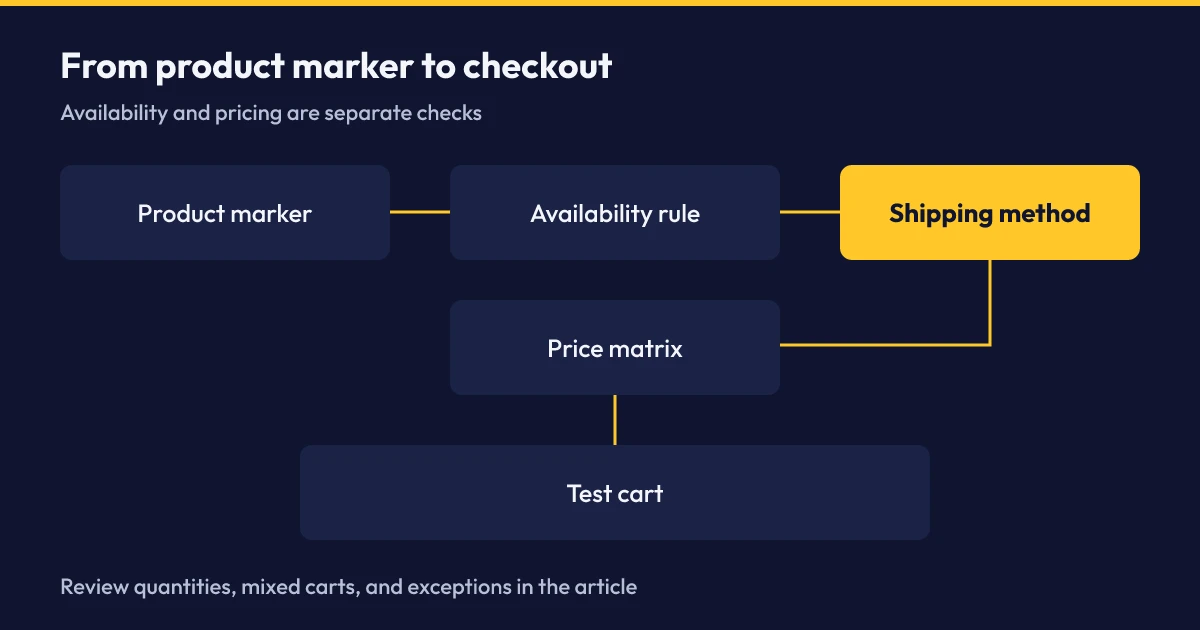
Shopware describes availability rules and price matrices as separate parts of shipping configuration. Keep that distinction in your acceptance record: a shipping method appearing in checkout does not establish that its charge is correct.
The following illustrative example uses bulky products and ordinary accessories. The intended policy is to require special shipping whenever marked goods are present, with its tariff depending only on their quantity. Unmarked accessories should not increase that quantity tier. Adopt this policy only if it matches the way your business actually packs and transports the goods.
Identify the affected products consistently
Choose a marker that catalog editors can understand and review. Avoid a policy whose meaning is hidden in an internal product name. Record who maintains the marker and which product changes require another review. Pay particular attention to variants that differ in packaging or transport requirements. The test must use the product the customer can actually order.
Choose deliberately between tags, properties, and custom fields
The official example rules use product tags for freight forwarding. Their example for charging only marked products instead uses a checkbox custom field. The condition reference also includes a condition for variant or property values. A property displayed on a product is therefore not itself a shipping charge: the chosen condition must explicitly evaluate it.
For the procedure below, use the checkbox as the central marker. Avoid allowing a separate tag to silently control the same decision. If a suitable marker already exists, establish where it is currently used before changing its meaning. A new field should not replace a working catalog convention without checking its consequences for the people maintaining the products.
Create the custom field
Open Settings > System > Custom fields. Create a set assigned to products and add a checkbox. Choose a unique technical name and an understandable label. The custom field documentation describes set assignments and field types.
Make it available for cart evaluation
Enable Available in shopping carts for the field. According to the Shopware documentation, this is required for using the field in the Rule Builder. Record its technical name in your configuration notes.
Maintain the affected products
Set the checkbox on the intended products and save them. Deliberately open an unmarked comparison product as well. For variants, inspect the specific orderable record. This gives the checkout test verified input data rather than assumptions about the catalog.
If an inventory or ERP system supplies your product data, settle ownership of the field before importing. Record whether the source system or the store editor maintains the marker. After a normal synchronization, inspect the marked test product again. The related article on the ERP trap in B2B commerce covers the surrounding integration topic.
Treat the product's free-shipping option separately
According to the product documentation, the Free shipping option applies to the individual product; it does not affect subsequent shipping calculations. Do not turn that statement into a blanket free-shipping policy for a mixed cart. Explicitly define what should happen when goods that still incur shipping charges are purchased alongside that product.
Configure Shopware shipping rules and cost calculation
Open Settings > Automation > Rule Builder. Create named rules with descriptions that explain their purpose, then save them. The Rule Builder documentation explains conditions, their connections, and optional filters. Use names such as “Standard shipping permitted” and “Special shipping required” rather than giving every rule the generic name “Shipping.”
Express availability through a filtered quantity
The condition reference lists Total product quantity (units) with an optional filter and the comparison operators Is greater than / equal to and Is less than. The example rules show a filter on a checkbox custom field. Our proposal: For availability, count only units of products whose checkbox is enabled and check for at least 1 for special shipping. This threshold is our configuration derived from the documented building blocks for mixed carts, rather than an availability rule copied from the documentation.
Read the mixed-cart example carefully
The official special-shipping example describes switching when marked goods are present, but shows the quantifier All in its checkbox condition. Do not copy that fragment into a mixed-cart policy without checking its meaning. The derived quantity check used here counts the marked goods specifically. Verify the result against your intended policy in your installation. Source: Shopware example rules.
For standard shipping, express the complementary policy: it should be permitted only when no marked goods are present. Preserve existing country or customer-group restrictions by combining the conditions with AND where those restrictions should continue to apply. Sketch the intended grouping before editing. This makes it easier to recognize an OR branch that would unintentionally reopen a shipping method.
Special shipping required
Select the quantity condition, open its filter, and add Item with custom field. Enter your checkbox's technical name and check for its enabled state. Our proposal for availability: Compare the filtered unit quantity using Is greater than / equal to 1. Save this derived rule and assign it to the special-shipping method.
Standard shipping permitted
Use the same documented filter for marked goods. Our proposal for availability: Compare the filtered unit quantity using Is less than 1. This complementary condition derived from the building blocks expresses the absence of marked goods. Assign it to standard shipping. Then confirm that any existing country restriction remains in the same AND group.
Read the saved rules back as business statements. Do the marker and filtered quantity refer to the same goods? Once special goods are completely removed, the standard condition should become true again. Make that comparison during setup instead of waiting for a customer report.
According to the Rule Builder documentation, priorities determine the order of matching rules. The special-shipping example uses 1 for the standard rule and 2 for special shipping. Adopt that relationship only after reviewing existing rules. A higher priority does not replace a logically correct exclusion condition.
Connect the shipping method to the sales channel
Open Settings > Commerce > Shipping and edit the intended method. Assign its availability rule. Check the Active setting and its assignment under Shipping methods in the sales channel. The shipping documentation describes this Active setting and identifies sales-channel assignment as a prerequisite for customers to use a method.
Start with test products in a test environment. Record which shipping method was selected when checkout opened. Then change the cart composition and inspect the available options again. Also review the customer-facing name of the method. A label that is unambiguous to administrators can still be confusing to buyers who simply need to know how their goods will arrive.
Build the price matrix around marked unit quantities
The shipping documentation lists number of items, basket value, weight and volume as the bases for a Price matrix according to properties. Here, number of items refers to cart line items (German: Anzahl Positionen), which must be distinguished from the number of units. For the filtered unit quantity required here, use a Price matrix by rules with the Total product quantity (units) condition and a filter on the checkbox instead. Shopware explicitly demonstrates this rule-based matrix for labelled products: quantity rules using “Is equal to” for 1, 2, 3 … and “greater than or equal to” for the last quantity. Assign the approved tariff to each rule. Use your actual shipping terms for the charges.
For each price rule, describe the covered unit quantity in words before entering its conditions. Then record whether the boundary belongs to that range. Test adjacent unit-quantity ranges consecutively and document the transition. Large orders also need an intentional pricing policy; the final range should not leave an accidental gap above the quantities used during the initial setup.
Do not confuse the number of all cart line items with the filtered number of special-shipping units. Add ordinary accessories while keeping the marked unit quantity unchanged. Under the policy selected here, the special-shipping tier should remain the same. If the tariff changes, inspect the unit-quantity condition and checkbox filter of the price rule before changing the charge itself. That comparison helps distinguish a selection problem from a pricing problem.
Check mixed carts and conflicting rules
Treat mixed-cart shipping costs as a separate acceptance case. Testing bulky goods alone cannot establish what happens when accessories are purchased with them. Write the expected behavior before every test, then compare the actual shipping method and charge. Otherwise, an incidental checkout result can easily become the assumed policy instead of being evaluated against the original requirement.
| Observation | Inspect | Comparison test |
|---|---|---|
| Standard shipping remains selectable with special goods | Exclusion condition and logical grouping | Add marked goods and remove them again |
| Special shipping appears only without accessories | Quantifier and filtered quantity condition | Keep the marked quantity constant and add accessories |
| The method is correct, but accessories increase the tariff | The unit-quantity condition and checkbox filter of the price rule | Change accessory quantities without changing marked goods |
| A particular unit-quantity range fails | Boundaries and coverage of the matrix | Test below, at, and above the boundary |
Distinguish the price condition from the matrix restriction
The shipping documentation also describes a restriction for the entire matrix. Inspect that level when an apparently correct price rule does not apply. Record the matrix restriction alongside the individual price condition. That comparison reveals whether the outer condition allows the inner tariff to be reached in the first place.
During diagnosis, change only the parameter under investigation wherever possible. If you revise the marker, availability rule, and matrix simultaneously, you will struggle to identify which change corrected the behavior. After a correction, repeat the previously failing test and an already successful comparison case. Store their results together so the reviewer can see the effect of the change.
Review delivery times independently of charges
A delivery time maintained on the product overrides the shipping method’s delivery time according to the product documentation. Alongside the price, inspect the delivery information shown for the actual ordered product. A correct special-shipping charge does not establish that the delivery promise is appropriate for those goods.
Include promotions in the comparison if your store uses them. Document the same cart without and then with the intended promotion. Record the shipping tariff separately from any discount. Avoid adjusting the price rule merely to conceal the effect of another configuration. Keeping the observations separate makes later maintenance much easier when the promotion ends or its conditions change.
Document test cases before enabling the configuration
Prepare an acceptance record containing the intended policy and screenshots. Use identifiable product numbers and record whether the buyer is signed in or shopping as a guest. Repeat the test after reopening checkout. Another person should be able to recreate the cart from the record without needing an additional explanation from the person who configured the rules.
Establish unmixed baseline carts
Test ordinary goods separately from marked goods. Record the permitted shipping method and approved tariff for each case. Inspect the marker again on the exact product used, rather than assuming that similar product names imply identical shipping data.
Mix products and change quantities
Add accessories to the special goods. Then change only the special quantity, followed by only the accessory quantity. Test tariff boundaries and the highest intended unit-quantity range. Finally, remove the special goods again and inspect the available shipping methods.
Cover exceptions and context changes
Test free-shipping products alone and beside products that still incur shipping charges. Repeat relevant cases with another supported delivery country and customer status. Include active promotions if they form part of the purchasing process you intend to release.
Use the same recording sequence for every case: describe the starting state, perform the change, capture the result, and compare it with the approved policy. Distinguish an incorrect rule from incomplete test data. An incorrectly marked product cannot be repaired by choosing a price matrix that happens to produce a plausible charge for that particular cart.
Assign a person responsible for acceptance. They should understand the shipping policy rather than simply approve a screenshot. In particular, have them confirm that the tariff structure reflects the actual packing and transport process. Record unresolved differences with their reproducible carts instead of passing on a vague action item such as “check shipping.” That gives the next reviewer a concrete starting point.
The Shopware example rules recommend clearing the cache after fundamental configuration changes before testing the storefront. Record that action in the acceptance notes. Then repeat the tests through the interface customers actually use to place orders, keeping the expected result visible while reviewing the final checkout.
For purchasing through a protected account area, include the same shipping tests in acceptance of the B2B customer portal. Continue reviewing the marker after release: when new products are introduced, catalog maintenance should explicitly decide which shipping policy applies to them. Retain the accepted carts as examples for that decision.
Frequently asked questions
Is creating a Rule Builder rule enough?
A rule alone does not establish a shipping tariff. Assign the availability rule to the shipping method and configure its price matrix. Then check the sales-channel assignment. Source: Shopware: Shipping.
Does a free-shipping product make the entire cart free to ship?
The documented product option applies to the product itself. Test mixed carts containing goods that still incur shipping charges separately, and also check active shipping discounts. Source: Shopware: Create products.
How do I stop accessories increasing the special-shipping quantity tier?
Filter the quantity rule to the marker identifying special-shipping products. Compare carts with the same marked quantity and different accessory quantities. Source: Shopware: Example rules.
Do I need a shipping-cost plugin?
The described building blocks—Rule Builder, custom fields, and a rule-based price matrix—are standard features according to the Shopware documentation. More complex shipping logic may require an extension; review the specific requirement separately.
Sources for the standard building blocks: Rule Builder, Custom fields, and Shipping.
Official sources and primary documentation
All sources below were checked for this guide on 03.11.2026.
Shopware: Release notes 6.7.16.0 — Version reference and publication on 02.11.2026. Checked: 03.11.2026.
Shopware: Shipping — Documentation branch 6.7.0.0 or newer, navigation path, availability, price matrices, and sales-channel assignment. Checked: 03.11.2026.
Shopware: Rule Builder — Conditions, filters, connections, and priorities. Checked: 03.11.2026.
Shopware: Rule Builder – Example rules — Special shipping, marked quantities, priority values, and cache guidance. Checked: 03.11.2026.
Shopware: Custom fields — Checkboxes, technical names, and availability in shopping carts. Checked: 03.11.2026.
Shopware: Create products — Free-shipping option and delivery times. Checked: 03.11.2026.
Our Regional Expertise
We are your digital partner – regionally anchored and successfully scaling across borders.

E-commerce for your business?
I deliver this for small and mid-sized businesses: at a fixed price agreed upfront, working directly with the person who builds it. Process, scope and pricing are on the service page.
See service & pricing Or request a free intro callExtended Specialized Glossary
Shopware 6
The store platform whose administration and shipping configuration this guide covers.
Rule Builder
The rule management interface for defining conditions used by shipping methods and shipping price rules.
Price matrix
A shipping method's pricing configuration, containing conditions and their associated charges.
Mixed cart
A shopping cart containing products with different shipping requirements.